

AI Summary
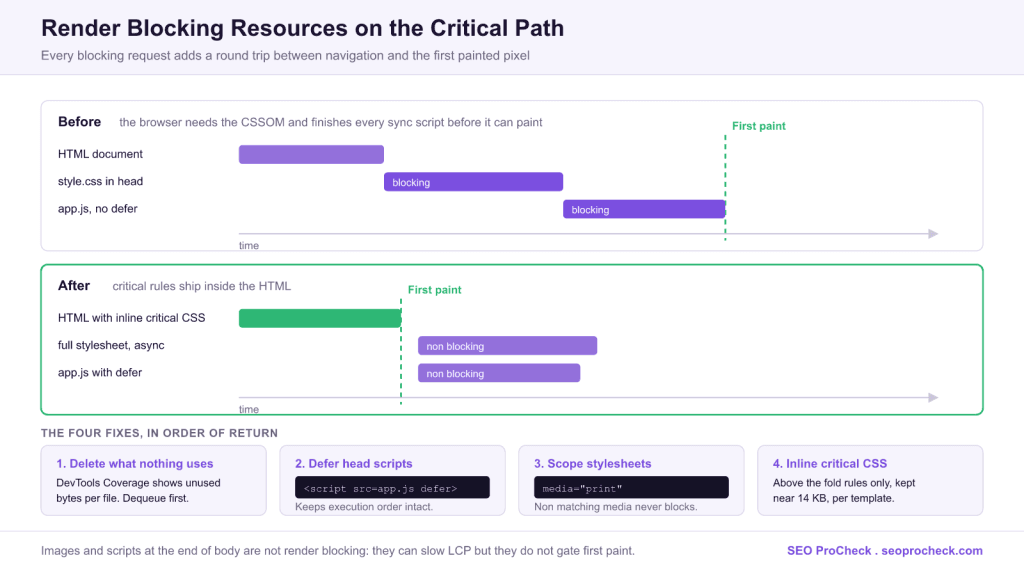
Render blocking resources are files, chiefly CSS stylesheets and synchronous <script> tags in the <head>, that the browser must download and process before it can paint anything on screen. Every one of them adds a network round trip between navigation and first paint, which is why they directly inflate First Contentful Paint and Largest Contentful Paint.
- By default every plain
<link rel="stylesheet">blocks, and every<script src>withoutdefer,asyncortype="module"blocks. - Fix in order of return: delete what nothing uses, add
deferto head scripts, scope stylesheets with amediaattribute, then inline critical CSS. - Keep inlined critical CSS near 14 KB per template so it fits inside the first congestion window.
- Images and scripts at the end of
<body>are not render blocking: they can slow LCP, but they do not gate first paint.
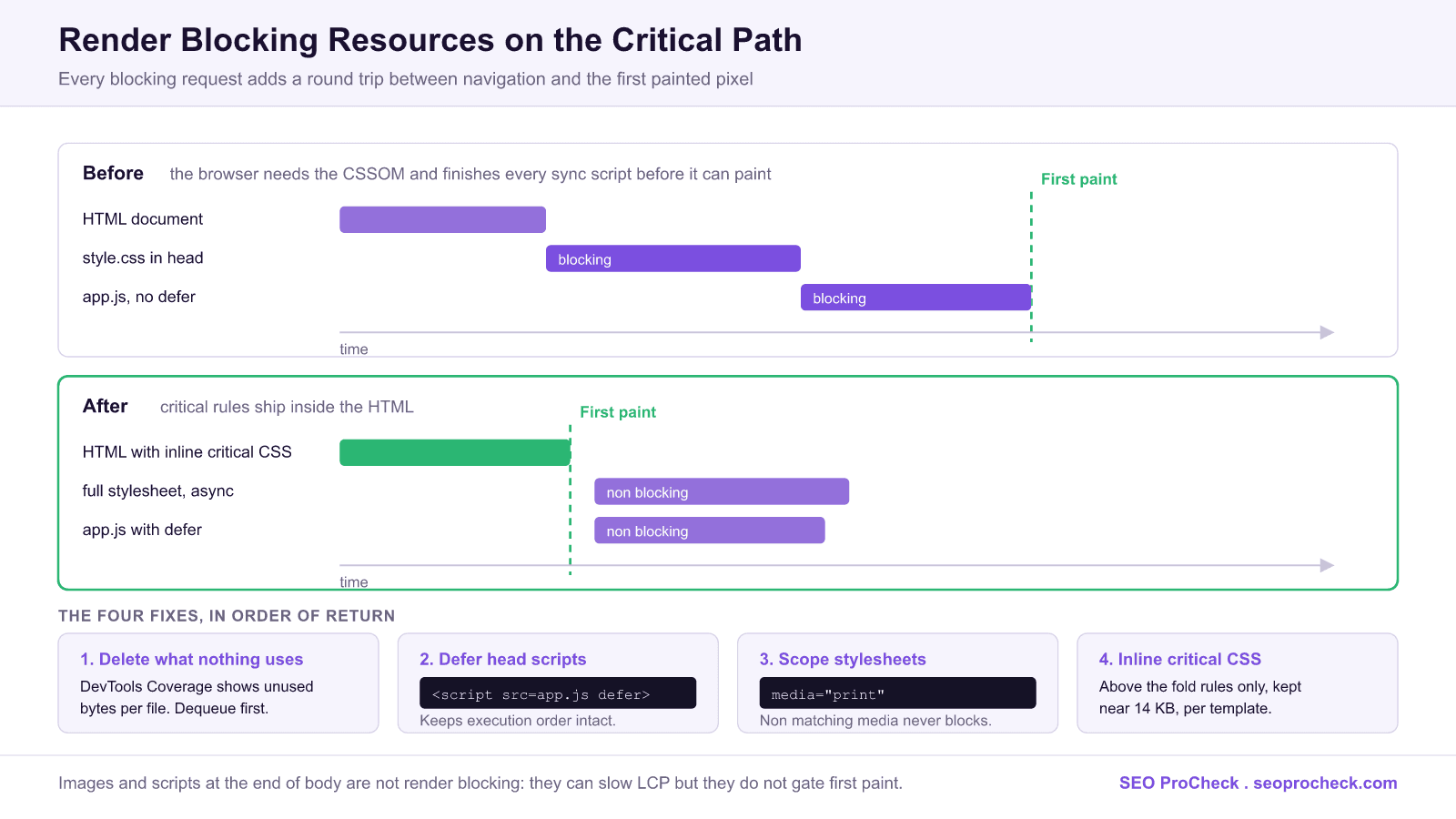
Render-blocking resources are files (chiefly CSS stylesheets and synchronous <script> tags in the <head>) that the browser must download and process before it can paint anything on screen. Every render-blocking request adds network round-trips between navigation and first paint, which is why they directly inflate First Contentful Paint and Largest Contentful Paint. The fix pattern is always the same: inline the small critical part, defer the rest, and delete what nothing uses.
Understanding Page Speed and the Rendering Path
Page speed represents a critical component of modern SEO strategy. As search engines continue to evolve and user expectations shift, understanding the nuances of page speed becomes essential for maintaining and improving organic visibility. Render-blocking resources sit at the very start of the critical rendering path: to paint pixels, the browser needs the DOM (from HTML) and the CSSOM (from every blocking stylesheet), and any synchronous script pauses HTML parsing entirely while it downloads and executes, because the script might document.write or read styles. By default, therefore, all plain <link rel="stylesheet"> tags and all <script src> tags without defer/async/type="module" block rendering. This guide covers the key concepts, detection methods, and fixes that SEO practitioners need to master.
How to Find Render-Blocking Resources
In PageSpeed Insights (or Lighthouse in Chrome DevTools > Lighthouse tab), run the audit and open "Eliminate render-blocking resources" under Diagnostics/Opportunities: it lists each blocking URL with its transfer size and the estimated ms saved. Cross-check with two other audits: "Reduce unused CSS" and "Reduce unused JavaScript," because a blocking file that is 90% unused should be pruned, not just deferred.
In Chrome DevTools you can see it at request level: open the Network panel, reload, and check the Priority column (enable it via right-click on the column headers): blocking CSS and synchronous head scripts load at Highest priority before any image. For per-file certainty, the Performance panel's flame chart shows the FCP marker; anything that finishes just before it was on the critical path. To measure what is actually used, open DevTools > More tools > Coverage, reload, and read the red "unused bytes" bar per CSS/JS file: real sites routinely show 60 to 90% unused CSS on a given template.
Fixes by Resource Type
| Resource type | How to detect it | Remedy (exact syntax) |
|---|---|---|
Theme/plugin CSS in <head> | Lighthouse "Eliminate render-blocking resources"; every plain <link rel="stylesheet"> | Inline critical CSS in a <style> block; load the rest async: <link rel="preload" href="style.css" as="style" onload="this.onload=null;this.rel='stylesheet'"> with a <noscript><link rel="stylesheet"…></noscript> fallback |
| CSS only needed for print or one breakpoint | View source: stylesheet lacks a media attribute | Add a media query so it stops blocking: <link rel="stylesheet" href="print.css" media="print">: non-matching media still downloads (low priority) but never blocks paint |
Synchronous JS in <head> | Network panel: script requested before FCP; source shows bare <script src> | <script src="app.js" defer></script>: downloads in parallel, executes in order after parsing. Use async only for independent scripts (analytics) where execution order doesn't matter; type="module" scripts defer by default |
| Third-party tags (chat, A/B testing, fonts CSS) | Lighthouse "Reduce the impact of third-party code" | Load with defer/async or after user interaction; add <link rel="preconnect" href="https://fonts.gstatic.com" crossorigin> for origins you must hit early. Anti-flicker snippets for A/B tools are deliberate render-blockers: cap their timeout or remove them |
| Web font CSS blocking text paint | Lighthouse "Ensure text remains visible during webfont load" | font-display: swap (or optional) in @font-face; self-host fonts; preload the primary WOFF2: <link rel="preload" href="font.woff2" as="font" type="font/woff2" crossorigin> |
| Mostly-unused framework CSS (Bootstrap, page builders) | DevTools Coverage tab shows >70% unused | Purge unused rules at build time (PurgeCSS/critical-path tooling) or conditionally dequeue per template; deferring 200 KB of dead CSS is still worse than shipping 20 KB |
@import inside CSS files | Search stylesheets for @import | Replace with a second <link> or bundle the files: @import serialises downloads into sequential round-trips |
Key Considerations for Understanding Render-Blocking Resources
When approaching page speed, several factors require careful attention. Technical implementation must align with broader SEO objectives while maintaining site performance and user experience. The balance between optimization and over-optimization requires ongoing monitoring and adjustment based on performance data. Two render-blocking-specific cautions. First, deferring CSS trades FCP for a flash of unstyled content (FOUC) if your inlined critical CSS is incomplete: generate it per template (above-the-fold rules for header, hero, and first content block), keep it under roughly 14 KB so it fits the first congestion window, and regenerate it when the design changes. Second, deferring JavaScript that builds above-the-fold content can worsen LCP and cause layout shift: if the hero image or headline is injected by JS, fix the templating before touching load order. On WordPress specifically, prefer dequeuing unneeded handles (wp_dequeue_style/wp_dequeue_script per template) over blanket "optimize everything" plugin toggles, and test any deferral plugin (Autoptimize, WP Rocket, Perfmatters) with jQuery-dependent inline scripts: deferring jQuery while inline snippets call $ synchronously is the classic breakage.
Implementation Best Practices
Successful implementation begins with thorough auditing of current state and clear goal definition. Document baseline metrics before making changes to enable accurate impact measurement: for render-blocking work, record lab FCP/LCP from Lighthouse plus field FCP/LCP from the CrUX data at the top of PageSpeed Insights, per key template. Prioritize changes based on potential impact and implementation effort: the usual order of return is (1) delete or dequeue unused files, (2) add defer to head scripts, (3) media-split CSS, (4) critical-CSS inlining: the first two are low-risk hours, the last is a maintained system. Test changes in staging environments when possible, and monitor closely after deployment to production. Maintain documentation of changes for future reference and troubleshooting.
Common Mistakes to Avoid
Several patterns consistently cause problems in page speed implementations. Rushing implementation without proper planning leads to errors that can be costly to fix: bulk-deferring every script is the render-blocking version of this, and it breaks checkout flows quietly. Ignoring the interplay between different factors creates conflicts that undermine results: preloading a dozen resources re-congests the very bandwidth you freed, so preload only the one or two assets (hero image, primary font) that the preload scanner cannot find early. Failing to monitor field data after deployment means missing regressions that lab tests don't show. And chasing a perfect Lighthouse score is its own trap: PageSpeed scores are not a ranking factor; Core Web Vitals field data is what feeds the page experience signals, and users feel milliseconds, not scores.
Measuring Success
Effective measurement requires defining appropriate KPIs aligned with business objectives. Track both leading indicators (rankings, impressions, technical metrics) and lagging indicators (traffic, conversions, revenue) to build a complete picture. For this work the primary technical KPIs are FCP and LCP: lab values before/after in Lighthouse for fast iteration, then 28-day field data in the Search Console Core Web Vitals report and CrUX for confirmation: field data lags your deploy by up to a month, so don't judge the change in week one. Good targets: FCP under 1.8 s and LCP under 2.5 s at the 75th percentile on mobile. Establish reasonable timeframes for evaluation, and compare performance against historical baselines and competitor benchmarks to contextualize results.
Strategic Recommendations
Approach page speed as an ongoing program rather than a one-time project. Build processes for regular auditing, monitoring, and optimization: render-blocking regressions arrive with every new plugin, tag-manager snippet, and theme update, so re-run the Lighthouse audit on your key templates after any of those. Set a simple budget: no new synchronous script in the <head> without a stated reason. Stay current with platform developments (native blocking="render" attributes and speculation rules are shifting what "blocking" means at the margins). Invest in education for team members so the marketing side understands what a tag costs before pasting it into the tag manager. Consider how page speed fits within your broader digital marketing and business strategy for maximum impact.
Frequently Asked Questions
Any file the browser must fetch and process before first paint: stylesheets linked without a non-matching media attribute or disabled state, @import-ed CSS, and <script> tags in the <head> that lack defer, async, or type="module". Images, videos, and scripts at the end of <body> are not render-blocking, they can slow LCP, but they don't gate first paint.
Both download in parallel with HTML parsing. async executes the moment the download finishes: pausing parsing at an unpredictable point, with no order guarantee between scripts. defer waits until parsing completes and preserves document order, which makes it the safe default for anything with dependencies (jQuery and its dependents). Rule of thumb: defer for site functionality, async only for fully independent beacons like analytics.
Indirectly. Google's page experience signals use Core Web Vitals measured from real Chrome users (CrUX), and render-blocking resources are usually the biggest driver of poor FCP/LCP. The ranking effect is a modest tiebreaker, not a primary factor, but the conversion effect of a faster first paint is measurable regardless of rankings, which is why the work pays even where rankings don't move.
Only for small sites with little CSS (under roughly 30 to 50 KB total). Inlining everything on every page eliminates caching: each pageview re-downloads styles inside the HTML. The standard pattern is hybrid: inline only the critical above-the-fold rules (aim for under ~14 KB) and load the full stylesheet asynchronously so repeat views hit cache.
Work template by template: use DevTools Coverage to see which enqueued styles/scripts a template actually uses, dequeue the rest via your child theme, then enable your optimization plugin's "defer JavaScript" and "critical CSS" features one at a time: testing forms, sliders, menus, and checkout after each toggle. Exclude jQuery from deferral first if any inline scripts depend on it, and keep a one-click rollback (the plugin's off switch) ready.
Usually one of three reasons: a caching layer (page cache or CDN) is still serving the old HTML: purge it and retest; the flagged file is injected by a third-party tag manager after your optimizations run; or the file is CSS loaded via preload whose onload handler is being stripped by a minifier. Check the rendered source (DevTools > Elements, not View Source) to confirm which version of the markup real visitors receive.
Take this with you
The assistant links open with a question about this page already written. Nothing is sent until you press enter.
Claude Vincent is a technical SEO consultant focused on crawlability, rendering, and AI-search visibility. He writes the field guides and case studies at SEO ProCheck, with a bias toward the durable, unglamorous work that decides whether search engines and AI answer engines can actually read and cite a site.
About SEO ProCheck
Technical SEO consulting and GEO strategy with 20 years of enterprise experience. Case studies, resources, and tools for search and AI visibility.
Work With Me
Technical SEO audits, GEO strategy, site migrations, and international SEO. Hourly consulting for teams who need hands-on support, not just reports.
Subscribe to our newsletter!
Recent Posts
- Most Top Sites Never Say Who They Are in Structured Data October 14, 2026
- Homepage Titles Are Mostly Too Short, Not Too Long October 8, 2026
- Who Actually Serves an llms.txt? 184 Top Sites Measured September 29, 2026