


AI Summary
aria-roledescription only works when the element it sits on already has a semantic role, so placing it on a bare div or span does nothing and is flagged as misuse. Fix it by giving the host a role such as role="group" or role="img", or by removing the attribute.
- The attribute overrides the spoken role name, not behaviour or focus
- A plain div or span has no role, so the label is ignored
- Pair it with a role plus an accessible name from aria-label
- Detect misuse with axe DevTools or Lighthouse accessibility audits
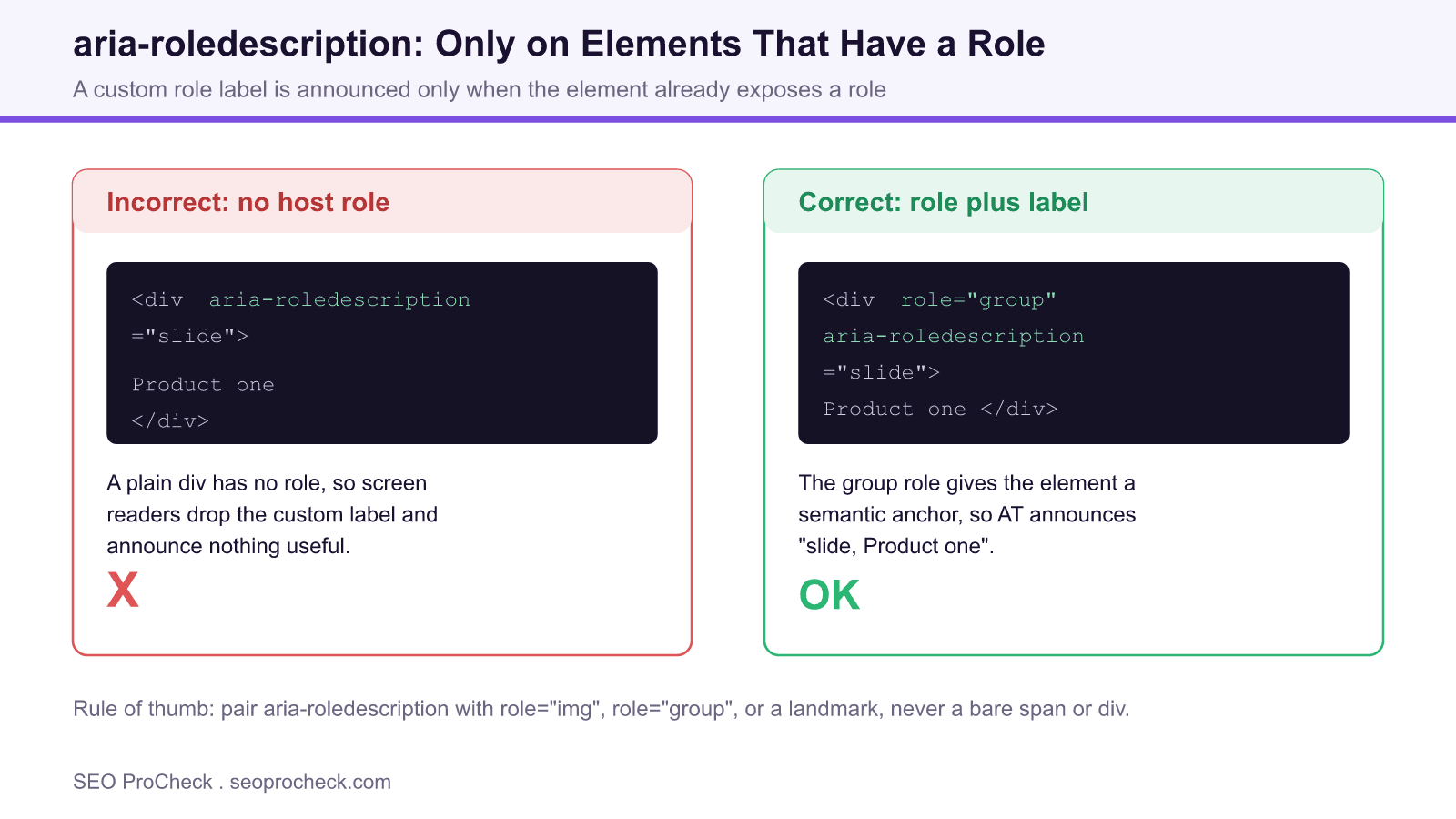
The aria-roledescription attribute lets you swap the role name a screen reader speaks for a friendlier, human label. It is powerful, and it is easy to misuse. The single rule that keeps it safe is simple: the attribute only works when the element it sits on already exposes a role. Put it on a bare <div> or <span> and assistive technology has nothing to relabel, so the attribute is dropped and the audit flags it.
How assistive technology reads the attribute
When a screen reader encounters an element, it looks up the role: a native semantic role for elements like <button> and <nav>, or an explicit role you set with role="...". That role produces the spoken text, for example "button" or "navigation". The aria-roledescription value overrides only that spoken text. With no role present there is nothing to override, so NVDA, JAWS, and VoiceOver generally ignore the attribute, and the custom label never reaches the user.
The correct pattern, step by step
- Give the element a role first. Add a native or explicit role such as
role="group",role="img", orrole="region"that matches the widget you are building. - Add the custom label. Set
aria-roledescriptionto a short noun phrase, for example"slide"or"rating". Keep it lowercase and concise. - Provide an accessible name. Pair the role with
aria-labeloraria-labelledbyso the reader announces both the label and the name, such as "slide, Product one". - Do not translate a native role away. Avoid relabelling a real
<button>or link unless the custom term is genuinely clearer, because you can hide the interaction hint users rely on.
| Element | Has a role? | aria-roledescription result |
|---|---|---|
| <div> with no role | No | Ignored by most screen readers, flagged as misuse |
| <span> with no role | No | Ignored, adds no value |
| role="group" slide | Yes | Announced, for example "slide, Product one" |
| role="img" figure | Yes | Announced as your custom label instead of "image" |
| <button> | Yes (implicit) | Overrides "button" text, use sparingly |
Common causes of the flag
In practice this warning appears for a handful of repeatable reasons. A component library outputs a wrapper <div> with the attribute but no role. A developer copies a carousel snippet and keeps aria-roledescription while dropping the role="group". A page builder injects the attribute on a decorative container. In every case the fix is the same: either add the missing role, or remove the attribute if the element should stay silent to assistive tech.
How to test the fix
Re run axe DevTools or the Lighthouse accessibility audit and confirm the issue clears. Then verify with a real screen reader: tab or arrow to the element and listen for your custom label plus the accessible name. Silence, or the generic role name, means the role is still missing. Because this is an automated ARIA rule, a crawler that runs axe will catch every remaining instance across templates.
Element Code: AC-029
Quick Reference
Issue: aria-roledescription on elements without semantic role
Impact: Confuses assistive tech
Fix: Only use on elements with roles
Detection: axe DevTools
What Is This Issue?
aria-roledescription should only be used on elements with semantic roles.
Why This Matters
Improper use confuses screen readers.
How to Fix
- Check element has role
- Remove if no role
Tools
- axe DevTools: ARIA validation
TL;DR
Only use aria-roledescription on elements with semantic roles.
Frequently Asked Questions
What does aria-roledescription actually do?
It replaces the spoken role name a screen reader announces for an element with your own human friendly label. If you set it on a slide container with role group, the reader can say "slide" instead of "group". It changes only the announced role text, not behaviour, focus order, or keyboard support.
Why is aria-roledescription on a plain div flagged?
A plain div or span has no implicit role, so there is no role for aria-roledescription to override. Most screen readers ignore the attribute entirely in that case, and some announce confusing output. The audit flags it because the attribute is doing nothing useful and signals a markup mistake.
Which elements is it safe to use on?
Use it on elements that expose a role: native interactive elements, landmarks, or elements you have given an explicit ARIA role such as role="img", role="group", role="button", or role="region". A carousel slide, a custom widget, and a decorative figure are common valid hosts.
Does aria-roledescription help SEO or only accessibility?
Its direct job is accessibility, but accessibility and SEO overlap. Clean, valid ARIA keeps your accessibility score high in Lighthouse and axe, avoids confusing assistive technology, and reduces the automated issue count that quality focused audits surface. It does not change how the page ranks by itself.
How do I detect misuse across a whole site?
Run axe DevTools or the Lighthouse accessibility audit, or crawl with a tool that runs axe rules such as Sitebulb. Search the rendered DOM for the attribute and confirm each host element has a role. Automated ARIA rules catch the missing role case reliably.
Should every carousel slide have aria-roledescription?
Only if it adds clarity and the slide has a role. A common pattern is role="group" with aria-roledescription="slide" on each slide plus an accessible name from aria-label. Do not stack it on wrappers that already convey the structure, or you create verbose, repetitive announcements.
Related SEO ProCheck Checks and Guides
- Skip Link Target Must Work
- Required ARIA Attributes Must Be Provided
- ARIA Tooltip Must Have an Accessible Name
Take this with you
The assistant links open with a question about this page already written. Nothing is sent until you press enter.
Claude Vincent is a technical SEO consultant focused on crawlability, rendering, and AI-search visibility. He writes the field guides and case studies at SEO ProCheck, with a bias toward the durable, unglamorous work that decides whether search engines and AI answer engines can actually read and cite a site.
About SEO ProCheck
Technical SEO consulting and GEO strategy with 20 years of enterprise experience. Case studies, resources, and tools for search and AI visibility.
Work With Me
Technical SEO audits, GEO strategy, site migrations, and international SEO. Hourly consulting for teams who need hands-on support, not just reports.
Subscribe to our newsletter!
Recent Posts
- Most Top Sites Never Say Who They Are in Structured Data October 14, 2026
- Homepage Titles Are Mostly Too Short, Not Too Long October 8, 2026
- Who Actually Serves an llms.txt? 184 Top Sites Measured September 29, 2026