

AI Summary
The alt attribute is the text alternative on an <img> tag that describes an image for people who cannot see it and for search engines that cannot read pixels. Write it accessibility-first: one natural phrase describing what is in the frame, an empty alt="" for purely decorative images, and never a pile of keywords.
- Alt text is required for accessibility and is a direct relevance input for image search.
- Decorative images take an empty
alt=""so screen readers skip them; meaningful images take a short description. - Match the alt to the job the image does: informative, decorative, functional, or image of text.
- Skip "image of" prefixes and keyword stuffing; describe the content in plain words.

What the alt attribute is
The alt attribute is the text alternative you put on an <img> element. It describes the image for people who cannot see it and for machines that cannot interpret it. Skip it and screen-reader users hit a wall, your images lose a relevance signal, and automated accessibility audits start flagging your pages.
It is accessibility-first. Search benefit is real but secondary. The alt attribute is one piece of the wider image SEO puzzle, the part that describes the picture in words. Filenames, responsive sizing, formats, and sitemaps live on that page; this one is about getting the description right.
What good alt text looks like
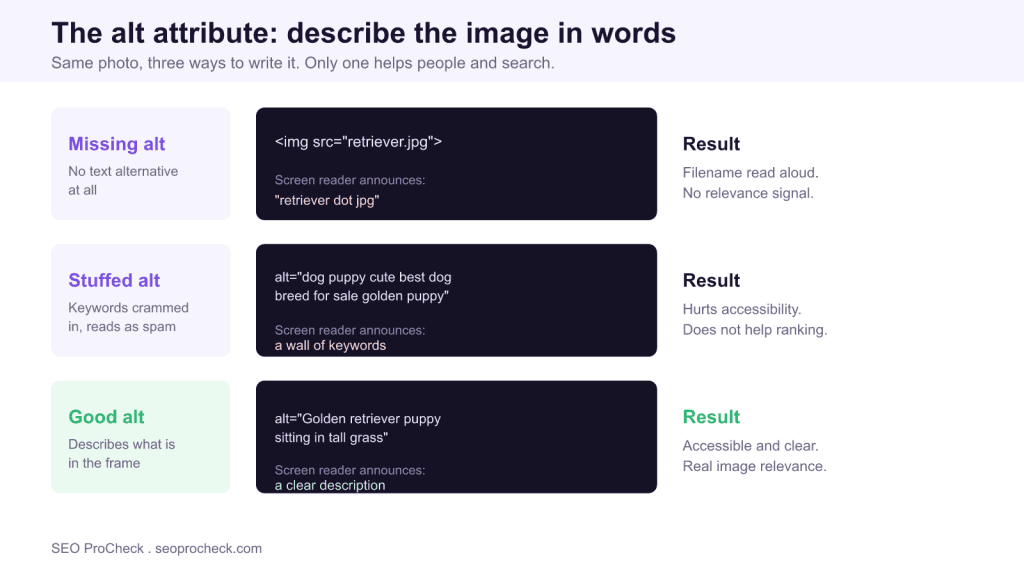
Same image, three ways to write it. Only one is correct.
<!-- Missing: screen reader announces the filename or "image" -->
<img src="golden-retriever.jpg">

<!-- Stuffed: hurts accessibility, doesn't help ranking -->
<img src="golden-retriever.jpg"
     alt="dog puppy cute dogs for sale best dog breed golden retriever puppy">

<!-- Good: describes what's actually in the frame -->
<img src="golden-retriever.jpg"
     alt="Golden retriever puppy sitting in tall grass">
The rule of thumb: write what you would say to describe the image to someone over the phone. If the image is purely decorative, say a divider or a background flourish, give it an empty alt (alt=""), not a missing one. An empty alt tells the screen reader "skip this, it carries no meaning." A missing alt makes the reader guess, often by reading the filename aloud.
Decorative vs. informative vs. functional
Not every image gets described the same way. The right alt depends on the job the image is doing.
| Image type | Example | Correct alt | Why |
|---|---|---|---|
| Informative | Chart showing 40% revenue growth | "Revenue grew 40% from 2023 to 2024" | Convey the information, not just "chart" |
| Decorative | Abstract header swirl | alt="" | Empty alt so screen readers skip it |
| Functional (linked/button) | Magnifying-glass search icon | "Search" | Describe the action, not the icon |
| Image of text | Logo reading "Acme Co." | "Acme Co." | Transcribe the visible words |
| Complex (infographic) | Multi-step process diagram | Short alt plus longer description nearby | Alt cannot hold a full breakdown |
How long alt text should be, and where the detail lives
Alt length is not one number. It scales with how much meaning the image carries and whether the surrounding page already explains it. The alt should be self-contained for a simple photo, but for a data-heavy image the alt names the takeaway while the real detail sits in text a sighted user can also read. Cramming a paragraph into an alt attribute is an accessibility anti-pattern: screen readers cannot pause, skim, or re-read it easily.
| Image role | Typical length | Where the detail lives |
|---|---|---|
| Simple photo | 5 to 15 words | The alt itself |
| Product photo | 8 to 20 words, include the distinguishing detail | The alt itself |
| Chart or graph | Short alt naming the finding | Full numbers in a nearby data table |
| Infographic | Short alt plus a pointer to the breakdown | A visible text summary next to the image |
| Decorative | Empty alt="" | Nowhere; it carries no meaning |
| Icon button | 1 to 3 words naming the action | The alt itself |
One image can even take different alt text on different pages. A photo of a person at a whiteboard might be "Team lead sketching a sprint plan" in a project-management article and "Presenter explaining a funnel diagram" in a marketing post. The alt describes the image in the context of the page it serves, not in the abstract.
How to check alt attributes across a site
- Spot-check by hand. View source, search for
<img, and confirm each has analt. Decorative images should havealt="", not nothing. - Run an accessibility tool. WAVE, axe DevTools, or Lighthouse's accessibility audit will flag missing and empty-where-they-should-not-be alt attributes.
- Crawl at scale. A site crawler will export every image URL with its alt text, so you can sort for blanks. See images need alt for the fix workflow.
- Check linked images and image buttons specifically. These need functional alt describing the destination or action. See image button needs alt.
- Listen to it. Turn on VoiceOver or NVDA and tab through the page. If an image announcement makes no sense out loud, rewrite the alt.
Common mistakes and how to fix them
- Missing alt on meaningful images. The screen reader falls back to the filename. Fix: add a plain description of what the image shows. Track these via images with missing alt attribute.
- Keyword stuffing. "cheap shoes buy shoes running shoes sale" helps nobody and reads as spam. Fix: describe the image in one natural phrase.
- "Image of" prefixes. Screen readers already announce that it is an image. Fix: drop "image of" and "picture of" and get straight to the content.
- Same alt on every product photo. Ten angles of the same shoe all reading "running shoe" is useless. Fix: describe each angle, for example "side profile," "sole tread," "heel counter."
- Decorative images with descriptive alt. A border graphic reading "blue decorative line" just adds noise for screen-reader users. Fix: use
alt="".
A practical workflow for writing alt at scale
On a real site the problem is rarely one image; it is hundreds, added by different authors over years. A repeatable workflow keeps quality consistent. First, decide the image role before you type a word: is it meaningful or decorative? That single decision determines whether you write a description or an empty alt="". Second, write from context. Read the sentence next to the image and describe what that sentence needs the reader to understand, not every pixel in the frame.
Third, use the right CMS field. In WordPress the media library exposes a dedicated Alt Text field that is separate from Title, Caption, and Description; only the Alt Text field becomes the rendered alt attribute, so filling in Caption and leaving Alt Text blank does nothing for accessibility. Fourth, handle the hard cases deliberately. Charts and infographics get a short alt that states the finding, paired with the underlying numbers in a nearby data table so both assistive-technology users and search engines can read them. Product galleries get per-angle descriptions rather than one repeated phrase.
Finally, build a recurring check into your audit instead of treating alt as a one-time cleanup. Export the full image inventory with a crawler, sort for blank alt on non-decorative images, fix the batch, then re-listen to a sample with a screen reader. Pair this page with image SEO so filenames, formats, and sitemaps get the same discipline as the descriptions.
Frequently asked questions
Is alt text a ranking factor?
It is a relevance signal for image search and it supports accessibility, which Google cares about broadly. It will not rocket a page up regular results on its own, but for Google Images it is a direct input. The bigger win is that it is the right thing to do for real users.
How long should alt text be?
Long enough to describe the image, short enough to not ramble, usually a phrase or short sentence. If you are writing a paragraph, the image is complex and needs a longer description in the surrounding text, not crammed into alt.
What is the difference between alt text and a title attribute?
Alt is the text alternative read when the image cannot be seen; it is required for accessibility. The title attribute shows a tooltip on hover and is optional. It is not a substitute for alt, and most screen readers do not read it reliably.
Should decorative images have alt text?
Yes, an empty one. alt="" tells assistive tech to skip the image. Leaving the attribute off entirely is worse, because the reader may announce the filename instead.
Is alt the same thing as image SEO?
No. Alt is one element. Full image SEO also covers filenames, responsive srcset, WebP and AVIF, lazy-loading, and image sitemaps. Nail alt for accessibility first, then handle the rest.
Does alt text help images appear in Google Images?
Yes. Google states that alt text, along with the filename and surrounding page text, helps it understand what an image shows and match it to relevant searches. Descriptive, honest alt gives your images their best shot at appearing for the queries they actually answer.
Take this with you
The assistant links open with a question about this page already written. Nothing is sent until you press enter.
Claude Vincent is a technical SEO consultant focused on crawlability, rendering, and AI-search visibility. He writes the field guides and case studies at SEO ProCheck, with a bias toward the durable, unglamorous work that decides whether search engines and AI answer engines can actually read and cite a site.
About SEO ProCheck
Technical SEO consulting and GEO strategy with 20 years of enterprise experience. Case studies, resources, and tools for search and AI visibility.
Work With Me
Technical SEO audits, GEO strategy, site migrations, and international SEO. Hourly consulting for teams who need hands-on support, not just reports.
Subscribe to our newsletter!
Recent Posts
- Most Top Sites Never Say Who They Are in Structured Data October 14, 2026
- Homepage Titles Are Mostly Too Short, Not Too Long October 8, 2026
- Who Actually Serves an llms.txt? 184 Top Sites Measured September 29, 2026