

AI Summary
How do you run Screaming Frog in the cloud? You install the SEO Spider on a cloud virtual machine (Google Compute Engine, AWS EC2, Azure, or any VPS with a desktop), license it with your existing key, switch storage mode to database, and either connect over remote desktop or drive it headlessly with the built-in command-line interface. The payoff is crawling multi-million-URL sites from a machine with server-grade RAM, SSD storage, and datacenter bandwidth that keeps running after you close your laptop.
- There is no Screaming Frog SaaS: running it in the cloud means installing the normal desktop app on a VM you control.
- Database storage mode is the setting that raises the crawl ceiling and makes a crawl resumable after a crash or a spot eviction.
- Headless CLI mode plus cron or Task Scheduler gives unattended recurring crawls with automatic exports.
- Your existing license works on the VM. Size vCPU for JavaScript rendering and disk speed for database mode.
How to Run the Screaming Frog SEO Spider in the Cloud provides valuable insights for SEO practitioners. This resource examines approaches and considerations that can improve organic search performance.
Key Concepts
Understanding the fundamental principles behind this topic helps inform strategic decisions. Whether optimizing for traditional search or emerging AI platforms, foundational concepts remain relevant. This resource covers the essential knowledge practitioners need.
Before choosing an instance type, work out which resource is actually your bottleneck, because the four candidates are not interchangeable:
- Storage mode sets your ceiling. In memory mode the crawl lives in the Java heap, so the URL limit is a function of allocated RAM. In database mode it is written to disk as the crawl proceeds, and the ceiling becomes disk size and disk speed instead. This one setting matters more than the instance shape.
- Disk latency sets your speed in database mode. Network-attached spinning storage will make a large crawl painful regardless of CPU. Use SSD or NVMe backed volumes rather than the cheapest tier available.
- CPU only binds when you render. A text-only crawl spends most of its time waiting on the network. Enable JavaScript rendering and every URL now spawns browser work, which is the point at which vCPU count starts to matter.
- The target server binds more often than any of the above. Most large crawls are limited by how fast the site will answer without degrading, not by the crawler's capacity.
The storage mode decision is worth making explicitly rather than inheriting the default:
| Memory storage mode | Database storage mode | |
|---|---|---|
| Where crawl data lives | Java heap, in RAM | On disk, written continuously |
| Practical ceiling | Bounded by allocated RAM | Bounded by disk size and speed |
| Survives a crash or spot eviction | No, the crawl is lost | Yes, the crawl can be reopened and resumed |
| Opening a saved crawl | Reloads into RAM first | Opens directly from disk |
| Sensible use | Small crawls on a local machine | Anything you rented a VM to run |
Implementation Considerations
Moving from concept to execution requires understanding practical constraints and opportunities. Different situations call for different approaches. This resource provides guidance for applying concepts in real-world contexts.
Two settings cause most of the avoidable failures. Memory allocation (Configuration > System > Memory Allocation) has to leave the operating system, and Chrome if you are rendering, enough room to work: handing nearly all of a VM's RAM to the Java heap is a common reason a machine grinds to a halt late in a long crawl. And the database directory needs to sit on the fast volume you provisioned, not on the boot disk you forgot to check.
Cost control is mostly about not paying for idle time. Stop the instance between scheduled runs rather than leaving it up; you keep paying for the attached disk either way, but compute is the larger line item. If you use spot or preemptible instances for one-off audits, database storage mode is exactly what makes an eviction survivable, because the crawl reopens and resumes instead of starting over.
For unattended runs, keep the configuration in version control as a saved .seospiderconfig file and reference it from the command line rather than configuring the GUI on the VM. That way the scheduled crawl and your local test crawl are provably the same crawl.
Measuring Impact
SEO efforts require measurement to demonstrate value and guide optimization. Identifying appropriate metrics, establishing baselines, and tracking progress enables data-driven improvement. This resource addresses how to evaluate success.
A cloud crawl that finishes is not automatically a crawl you can report on. Check three things first:
- Did it complete, or did it hit a limit? Compare the crawled URL count against your configured limits and against the sitemap count. A crawl that stopped on a suspiciously round number stopped because you told it to.
- Did the site throttle you? A rise in 429 or 5xx responses partway through means you measured the server's rate limiting rather than the site. Slow the crawl down and run it again before drawing conclusions.
- Did rendering actually happen? If you enabled JavaScript rendering, spot check a handful of URLs whose content is client-side. A silent rendering failure produces a crawl that looks complete and reports empty pages.
For recurring crawls, keep the saved crawl files rather than only the exports. Crawl comparison against the previous run is the fastest way to spot a template change or an accidental noindex, and it only works if the earlier crawl still exists.
This resource contributes to the knowledge base SEO practitioners need for effective optimization in an evolving search landscape.
Why Move a Crawl Off Your Laptop
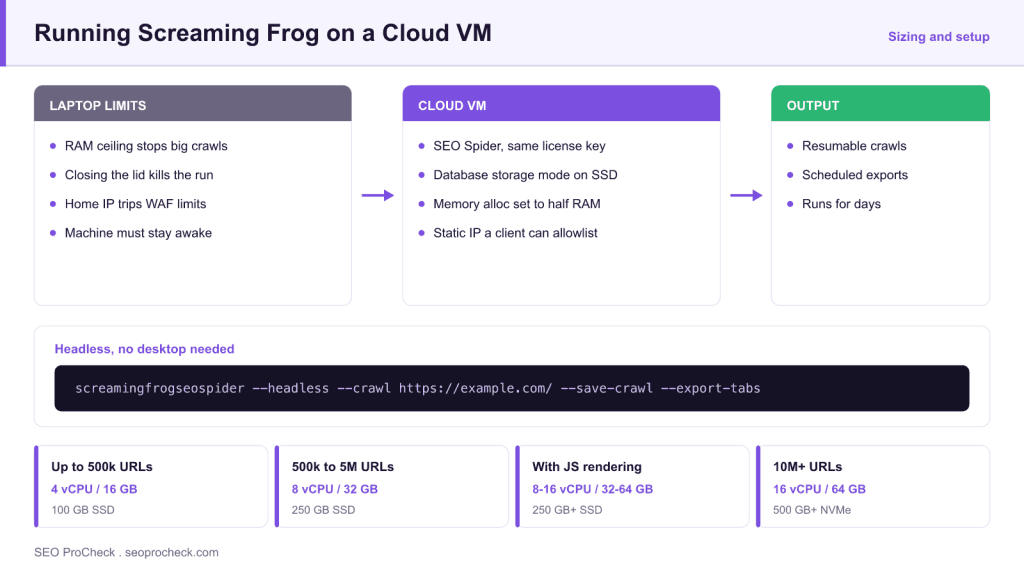
The linked guide is Screaming Frog’s own walkthrough of installing the SEO Spider on a cloud virtual machine, and the motivation has not changed since it was written: large crawls are constrained by RAM, disk speed, connection stability, and the simple fact that your laptop has to stay awake. A cloud VM removes all four constraints at once. A crawl of a few million URLs that would choke a 16 GB laptop, or die when you shut the lid, runs comfortably on a rented machine and keeps going for days if it has to.
Three situations make the cloud setup worth the effort: enterprise-scale crawls (roughly 500k+ URLs, especially with JavaScript rendering enabled, which multiplies memory and CPU cost per URL); scheduled recurring crawls that must fire whether or not your workstation is on; and crawling from a stable datacenter IP that you can ask a client to allowlist, instead of a residential connection that trips WAF rate limits.
What’s Changed Since the Original Guide
The core recipe (spin up a VM, install the Spider, connect via remote desktop) still works exactly as described. But several things around it have moved on, and a few are important enough to change how you would build the setup today:
- Database storage mode is now the default answer, not an option. Memory storage was the traditional mode when the guide was written; today any serious crawl should run in database storage mode (Configuration > System > Storage Mode), which writes crawl data to disk as it goes. On an SSD-backed VM this lifts the practical ceiling into the tens of millions of URLs, makes crawls resumable after a crash, and keeps RAM needs modest.
- Headless CLI mode matured. The Spider ships a full command-line interface (
--headless --crawl https://example.com/ --save-crawl --export-tabs ...), so a cloud box no longer needs a desktop session at all for routine jobs. Pair it with cron (Linux) or Task Scheduler (Windows) and you have unattended scheduled crawls that export straight to Google Sheets, Looker Studio, or flat files. - Built-in scheduling and automated exports (File > Scheduling) now handle the “weekly crawl, export the reports” use case inside the GUI, including post-crawl exports and comparison against the previous crawl.
- Spot/preemptible instances got cheap. For one-off audit crawls, a spot instance with a big memory allocation often costs less per crawl than the electricity argument for running it locally, just make sure database storage mode is on so an eviction doesn’t lose the crawl.
Sizing the VM: A Practical Starting Table
Exact needs depend on rendering settings and how many extraction fields you enable, but these starting points hold up in practice with database storage mode on SSD:
| Crawl size | Suggested VM shape | Storage | Notes |
|---|---|---|---|
| Up to ~500k URLs, HTML only | 4 vCPU / 16 GB RAM | 100 GB SSD | Comfortable; also fine for most local machines |
| 500k to 5M URLs, HTML only | 8 vCPU / 32 GB RAM | 250 GB SSD | Database mode mandatory; allow disk headroom for exports |
| Any size with JavaScript rendering | 8 to 16 vCPU / 32 to 64 GB RAM | 250+ GB SSD | Rendering is CPU-bound; drop crawl speed rather than starve Chrome |
| 10M+ URLs | 16 vCPU / 64 GB RAM | 500 GB+ NVMe | Plan crawl in sections; consider include/exclude segmentation |
Two configuration notes that save real money and real crawls. First, egress bandwidth is billed on most clouds: a multi-million-URL crawl downloads a lot of HTML, so check pricing before pointing a rendered crawl at a huge site. Second, throttle responsibly: a datacenter VM can easily request faster than the target server is happy with, so set speed limits appropriate to the site and honor crawl-delay expectations, particularly on shared hosting. If you are crawling your own site, this is also a moment to think about crawl budget from the server’s side of the equation.
Setup Checklist
- Provision the VM (Windows Server, or Linux with a lightweight desktop if you want the GUI; none needed for pure CLI use).
- Lock down access: restrict RDP/SSH to your IP, use key auth or strong passwords, because exposed RDP is the most-attacked port on the internet.
- Install the SEO Spider and enter your license key (a paid license permits installation on multiple machines used by the same user).
- Switch to database storage mode and point it at the SSD volume.
- Set memory allocation (Configuration > System > Memory Allocation) to roughly half the VM’s RAM, leaving the rest for the OS and, if rendering, Chrome.
- Run a small test crawl, then load your production configuration: our Screaming Frog crawl recipes cover ready-made configurations for audits, redirect mapping, and extraction jobs.
- For recurring jobs, wire up File > Scheduling or a cron-driven CLI command with
--export-tabs/--save-reportflags, and ship exports to cloud storage.
Frequently Asked Questions
Is there an official Screaming Frog cloud or SaaS version?
No. The SEO Spider remains desktop software. “Running it in the cloud” means installing the normal application on a cloud VM you control, which is exactly what Screaming Frog’s own guide describes. That is a feature for many teams: crawl data stays on infrastructure you own.
Does my Screaming Frog license work on a cloud VM?
Yes. The license is per user, and you can install the Spider on machines you use, including virtual ones. Enter your existing key on the VM as you would locally; just don’t share one key across multiple concurrent users.
Should I use memory or database storage mode for cloud crawls?
Database storage mode, almost always. It writes to disk continuously, so crawls survive crashes and instance restarts, scale far beyond RAM limits, and reopen instantly. Memory mode is only faster for small crawls that fit comfortably in RAM, the kind you wouldn’t rent a VM for.
Can I run Screaming Frog without a GUI at all?
Yes. Headless CLI mode runs a full crawl from the command line, loading a saved configuration file and exporting chosen tabs, reports, and bulk exports on completion. This is the standard pattern for scheduled crawls on a Linux VM with no desktop installed.
How much does it cost to crawl a large site this way?
Cloud pricing changes constantly, so check current rates, but the shape of the cost is predictable: you pay for VM hours, SSD storage while the machine exists, and network egress for the pages downloaded. One-off audits are cheapest on spot instances you delete afterward; recurring crawls suit a small always-off VM you start on schedule.
Will crawling from a datacenter IP get me blocked?
Sometimes. CDNs and WAFs treat cloud IP ranges with more suspicion than residential ones. Identify yourself honestly in the user-agent, crawl at a polite speed, and for client work ask them to allowlist the VM’s static IP; that is one of the advantages of the cloud setup, since the IP never changes.
Take this with you
The assistant links open with a question about this page already written.
Claude Vincent is a technical SEO consultant focused on crawlability, rendering, and AI-search visibility. He writes the field guides and case studies at SEO ProCheck, with a bias toward the durable, unglamorous work that decides whether search engines and AI answer engines can actually read and cite a site.
About SEO ProCheck
Technical SEO consulting and GEO strategy with 20 years of enterprise experience. Case studies, resources, and tools for search and AI visibility.
Work With Me
Technical SEO audits, GEO strategy, site migrations, and international SEO. Hourly consulting for teams who need hands-on support, not just reports.
Subscribe to our newsletter!
Recent Posts
- Google August 2026 Spam Update: Dates, Duration and How to Read Your Data November 2, 2026
- Google Algorithm Updates: The Dated List Since 2003, and What to Do After Each October 31, 2026
- AI Readiness: The Checklist, the Research and the Free Tools October 28, 2026