

How To Enable Key Moments Snippets In Google Search via @sejournal, @MattGSouthern
- November 10, 2021
- General

AI Summary
How do you get Key Moments on your videos in Google Search? For YouTube videos, add timestamped chapters in the description (or let YouTube generate them automatically), and Google pulls Key Moments from there. For videos hosted on your own site, you mark up the video with VideoObject structured data and either declare each segment manually with Clip markup or point Google at your player’s time-seek URL pattern with SeekToAction so it can identify moments automatically. The video must also meet Google’s baseline video indexing requirements, or the markup does nothing.
- Key Moments comes from chapters for YouTube videos, and from
CliporSeekToActionmarkup for self-hosted video. Clipgives you control of the segment labels.SeekToActionlets Google pick the moments from a URL time template.- Nothing works until the video itself is indexed and is the main content of its own page.
- Valid markup earns eligibility only. Google decides per query whether to display the segments.
How To Enable Key Moments Snippets In Google Search via @sejournal, @MattGSouthern provides valuable insights for SEO practitioners. This resource examines approaches and considerations that can improve organic search performance.
Key Concepts
Understanding the fundamental principles behind this topic helps inform strategic decisions. Whether optimizing for traditional search or emerging AI platforms, foundational concepts remain relevant. This resource covers the essential knowledge practitioners need.
Key Moments is a presentation feature rather than a markup type. Google needs two separate things before it can show one: a video it has successfully indexed, on a page it has indexed, and a dependable way to link into a specific timestamp of that video. Every implementation detail below is really one of those two problems.
The timestamp link is the half that gets underestimated. Both Clip and SeekToAction assume your player can be deep linked, meaning a URL carrying a time parameter loads the page and begins playback at that point. If the player ignores the parameter, or refuses to seek until the user interacts with it, the markup will validate perfectly and the feature still cannot work. Test the deep link by hand in a private window before you write a single line of structured data.
Implementation Considerations
Moving from concept to execution requires understanding practical constraints and opportunities. Different situations call for different approaches. This resource provides guidance for applying concepts in real-world contexts.
A minimal working setup, in the order the steps have to happen:
- Give the video its own page, with the player as the main content, above the fold, in a supported format.
- Confirm the deep link pattern. Load something like
https://example.com/watch/my-video?t=84in a private window and check that playback genuinely starts at 1:24. - Add the VideoObject with
name,description,thumbnailUrl,uploadDate,durationin ISO 8601 format, and eithercontentUrlorembedUrl. - Add one route, not both. For
Clip, each segment needs aname, astartOffsetin seconds, optionally anendOffset, and aurlcontaining the timestamp. ForSeekToAction, declare the URL template once with the time placeholder. - Validate, then wait. The Rich Results Test confirms your syntax; only the Search Console video indexing report confirms that Google agrees the video exists.
One failure worth checking explicitly: startOffset values that fall outside the declared duration. It usually happens when the duration was copied from a different encode of the same video, and it produces markup that validates while the segments never appear.
| What you observe | Where to check | Usual cause |
|---|---|---|
| Video absent from the video indexing report | Search Console, video indexing | The page is not indexed, or the video is not the main content |
| Video indexed but no thumbnail shown | thumbnailUrl and the poster image | Thumbnail blocked by robots.txt, wrong format, or too small |
| Markup validates, no segments ever appear | The deep link, by hand | The player ignores the time parameter |
| Segments show on some videos only | Offsets against declared duration | startOffset values outside the video's duration |
| Segments appeared, then stopped | Repeat the query check | Normal: the feature is granted per query, not permanently |
Measuring Impact
SEO efforts require measurement to demonstrate value and guide optimization. Identifying appropriate metrics, establishing baselines, and tracking progress enables data-driven improvement. This resource addresses how to evaluate success.
Key Moments has no report of its own, so measure it in two places. In Search Console, the video indexing report tells you whether the video was found and indexed, which is the prerequisite for everything else; the performance report's search appearance filter tells you whether video results are earning impressions at all. Neither isolates Key Moments specifically, so read a rise in video impressions against stable rankings as the signal that segments are being shown.
Then verify by hand, periodically. Search a distinctive phrase from the video's page in a private window and see whether timestamped segments appear beneath the result. Because eligibility is granted per query, one successful check proves the feature is available to you rather than proving it is consistent.
This resource contributes to the knowledge base SEO practitioners need for effective optimization in an evolving search landscape.
Key Moments in 2026: What Still Works
The Search Engine Journal article summarized above dates from the period when Google opened Key Moments to self-hosted video via structured data. The mechanics it describes are still the current, documented mechanics, but the surrounding video-search landscape has shifted enough that the context matters as much as the markup.
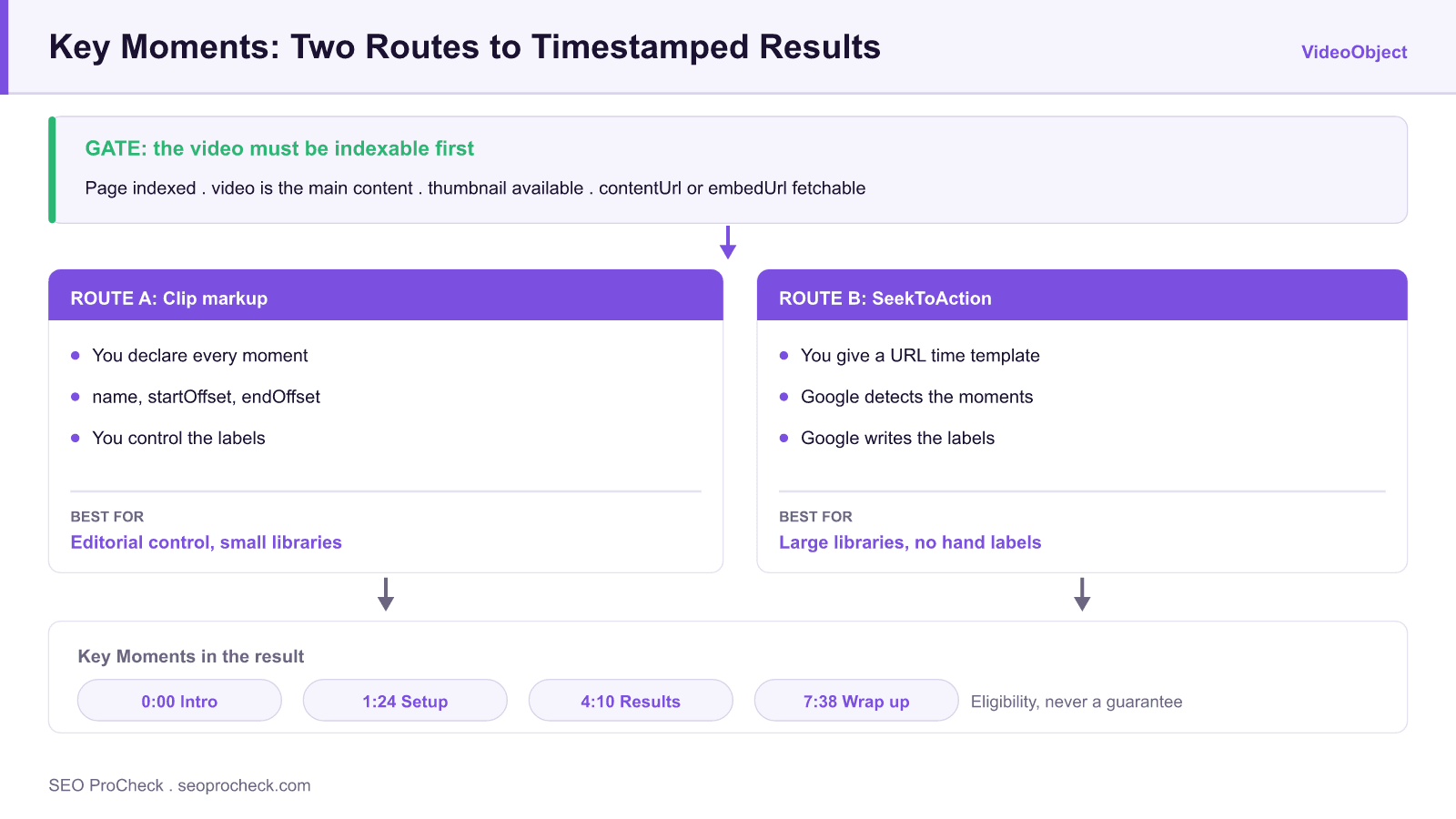
The two markup routes for self-hosted video remain Clip and SeekToAction, both attached to a VideoObject:
Clip markup | SeekToAction markup | |
|---|---|---|
| How it works | You declare each moment yourself: name, startOffset, endOffset, and a URL that starts playback at that timestamp | You give Google a URL template with a timestamp placeholder (startOffset-based deep link); Google detects the moments itself |
| Control over labels | Full: you write the segment titles | None: Google chooses which moments to show and how to label them |
| Effort | Higher: per-video, per-segment markup (usually automated from a chapters file) | Low: one template pattern for your whole player |
| Player requirement | Player must support jump-to-time URLs | Player must support jump-to-time URLs |
| Best for | Editorial control, tutorial/how-to segments, small libraries | Large libraries where hand-labeling is impractical |
Both routes fail silently if the underlying video is not indexable, so the markup step is actually the second step. Our guides to video schema requirements for rich results and the full VideoObject schema guide cover the required and recommended properties in detail, and our video schema generator produces a valid starting block.
What’s Changed Since the Article
- Video indexing got stricter about page purpose. Since Google’s 2023 to 2024 changes, video thumbnails in main search results only appear when the video is the main content of its page. A video embedded halfway down a blog post can still be indexed, but it will not earn a thumbnail result, and in practice Key Moments treatment concentrates on dedicated watch pages. If Key Moments matter to you, give each video its own watch page.
- GSC reporting matured. Search Console’s video indexing report now tells you per-URL whether a video was identified and indexed, and why not if it wasn’t (no thumbnail, video outside the viewport, page not indexed). Check this report before debugging your Clip markup: most “Key Moments don’t show” cases die at this earlier stage.
- YouTube auto-chapters became the default. On the YouTube side, automatic chapter generation now covers most videos, so manually timestamped descriptions are about controlling chapter names, not enabling the feature.
- Key Moments remains eligibility, not entitlement. As with every rich result, valid markup makes you eligible; Google decides per-query whether to show moments. Volatility in video features has been high in recent years, so track impressions in GSC’s search appearance filters rather than assuming a one-time visual check settles it.
Baseline Video Indexing Requirements (the Part Everyone Skips)
Before any Key Moments markup can matter, the video itself must be indexable. The checklist:
- The host page is indexable (no noindex, not blocked by robots.txt, returns 200).
- The video is visible on page load, in a supported format, inside the viewport, and reasonably prominent, ideally the main content of the page.
- A valid thumbnail is available to Google (via
thumbnailUrlin the markup or a crawlable poster image) in a supported format and size. - The video file or a supported embed is fetchable:
contentUrlorembedUrlin the VideoObject, not blocked by robots.txt. - Required VideoObject properties are present:
name,thumbnailUrl,uploadDate, plusdescriptionanddurationas strongly recommended. - Validate with the Rich Results Test, then confirm real-world status in Search Console’s video indexing report. Our VideoObject schema check covers the common validation failures.
Frequently Asked Questions
What are Key Moments in Google Search?
Key Moments are the clickable, timestamped segments Google shows under a video result, letting searchers jump straight to the relevant part of the video. They function like a table of contents for video content in the SERP.
How do I get Key Moments for my YouTube videos?
Add chapters: put a list of timestamps starting at 0:00 with labels in the video description, or accept YouTube’s automatically generated chapters. No structured data is involved for YouTube-hosted video: Google reads the chapter data directly.
What is the difference between Clip and SeekToAction markup?
Clip lets you manually define each moment with your own label and start/end times; SeekToAction just tells Google how to build a link to any timestamp in your player, and Google picks the moments itself. Use Clip when you want editorial control, SeekToAction when you want coverage across a large library.
Why don’t my Key Moments show even though my markup validates?
Usually because the video itself is not indexed: the page isn’t indexed, the video isn’t the main content of the page, the thumbnail is unavailable, or the video file is blocked. Check Search Console’s video indexing report first. And even with everything correct, the feature is granted per query at Google’s discretion.
Does my video need to be on its own page?
For full video features, effectively yes. Since Google restricted video results to pages where the video is the main content, a dedicated watch page per video is the reliable pattern; embeds inside articles rarely earn thumbnails or Key Moments anymore.
Can I use both Clip and SeekToAction on the same video?
You should choose one per video, since Google’s documentation treats them as alternative routes to the same feature. If you provide Clip markup, your declared segments take priority; there is no benefit to layering the automatic method on top.
Source: https://www.searchenginejournal.com/how-to-enable-key-moments-snippets-in-google-search/426612/
Take this with you
The assistant links open with a question about this page already written. Nothing is sent until you press enter.
Claude Vincent is a technical SEO consultant focused on crawlability, rendering, and AI-search visibility. He writes the field guides and case studies at SEO ProCheck, with a bias toward the durable, unglamorous work that decides whether search engines and AI answer engines can actually read and cite a site.
About SEO ProCheck
Technical SEO consulting and GEO strategy with 20 years of enterprise experience. Case studies, resources, and tools for search and AI visibility.
Work With Me
Technical SEO audits, GEO strategy, site migrations, and international SEO. Hourly consulting for teams who need hands-on support, not just reports.
Subscribe to our newsletter!
Recent Posts
- Most Top Sites Never Say Who They Are in Structured Data October 14, 2026
- Homepage Titles Are Mostly Too Short, Not Too Long October 8, 2026
- Who Actually Serves an llms.txt? 184 Top Sites Measured September 29, 2026